
How Switchify works
Switch access means controlling a device using one or more switches — a button, a keyboard key, a facial expression — instead of (or alongside) the touchscreen. Switchify is the app that turns those inputs into all the actions you'd normally do by tapping.
This page walks through every way of selecting that Switchify supports, in the order you'd normally meet them. Pick the section that matches how you move.
Access techniques
An access technique is how Switchify decides what part of the screen you mean. There are three.
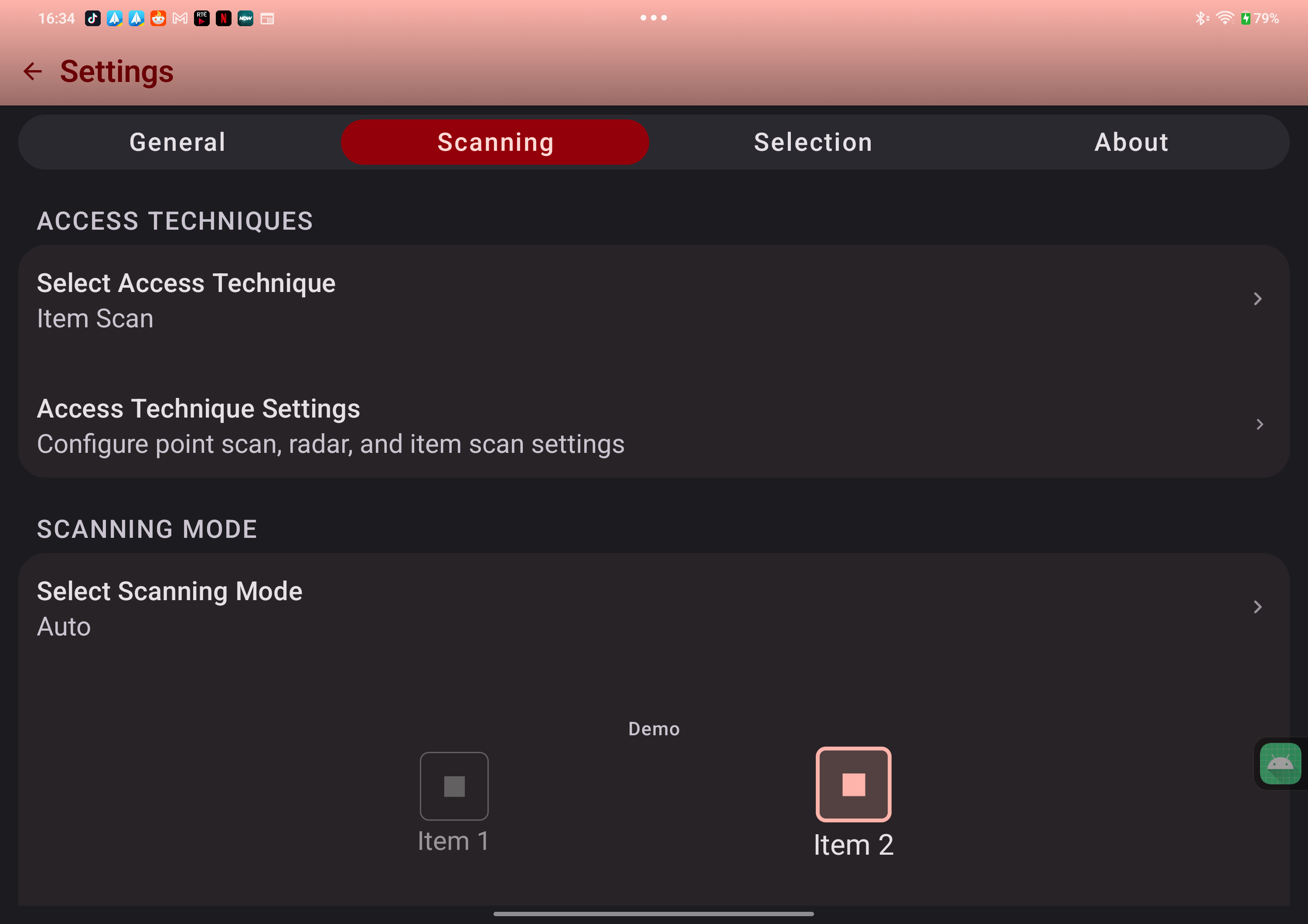
Item scanning
Item scanning ignores positions and instead highlights interactive things on the screen — buttons, links, text fields — one at a time. You press your switch when the one you want is highlighted. It's the default for most users and the fastest for everyday tasks. Turn on row/column scan to move through rows first and then the items in the chosen row, and group scan to split long rows into smaller groups.
Point scanning
Point scanning uses moving lines to land on an exact spot. There are two modes:
- Line only. A horizontal line moves down the screen. You press your switch when it's at the right height. A vertical line then moves sideways. You press again when it's over the right column. Where the two crossed is your tap point.
- Grid + line. The screen is divided into a grid whose size you choose. You pick a block first, then refine with the scanning line inside it. Quicker than line only when you can read the screen quickly.
The line speed and the grid scan speed are set separately.
Radar
A line sweeps round the screen like a radar dish. You press your switch to lock the angle. A point then slides along that line. You press again to drop your tap there. Useful for awkward corners and overlaid menus where item scanning can't reach.
Scanning methods
A scanning method is who does the moving — Switchify, or you.
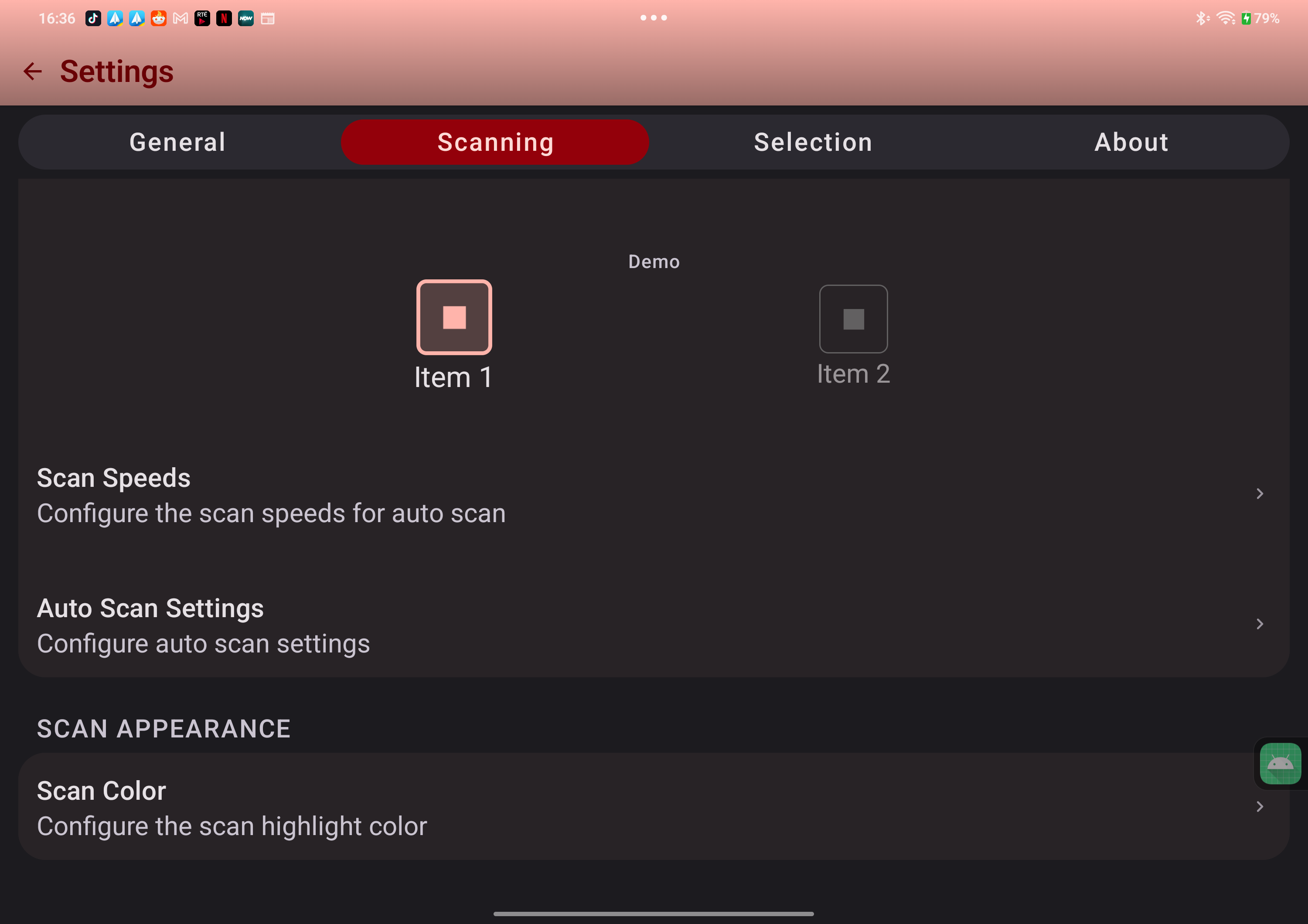
- Auto scanning. The highlight moves on its own at a speed you set. You press your switch to select when it reaches what you want. The right choice for single-switch users.
- Manual scanning. One switch steps the highlight forward; another switch selects. The right choice for two-switch users — you control the timing completely.
Switches
An external switch is anything that reaches Android as a key press: a USB or Bluetooth adaptive switch interface, a Bluetooth button, or a key on an external keyboard. Add it in Settings under Switches, press it when prompted, and Switchify learns it.
Each switch can carry long press actions that run in sequence depending on how long you hold. Switch stability settings let you ignore repeated presses of the same switch for a set delay and require a hold time before a press counts, which helps when movement is involuntary.
Camera switches
Through the front camera, Switchify recognises a smile, a left wink, a right wink, a blink, a pucker, and head turns to the left, right, up and down. Each gesture can act as a switch — so you can use the app without any physical hardware, or mix camera gestures with physical switches. Every gesture has its own hold time to avoid false triggers, and recognition runs on your device.
Gesture patterns
Gesture patterns let you record a sequence of gestures — taps, swipes, drags, pinches and more — and play it back later with one switch press. A pattern holds up to ten gestures. Great for repetitive interactions you'd rather not drive step by step every time.
You record and play patterns from the Gesture Patterns menu while Switchify is running. The Gesture Patterns screen in Settings is where you rename, reorder, and delete them.
The menu
When Switchify is on, its own actions live in a menu that your scanner moves through row by row: tap, double tap, long press, drag, swipe, pinch, scroll, home, back, recents, notifications, quick settings, volume, lock screen, media controls, scan the keyboard, favourite apps, and more. The highlighted item's name and description appear in a header above the list, so long labels are never cut off.
Pages hold five rows on a narrow phone, six on a regular phone, eight on a tablet, and ten on a large tablet or foldable. When there are more items than fit, previous page and next page rows appear along with close. Menu Customization in Settings lets you reorder items and hide the ones you don't use.
PC control
Computer control lives in a companion app, Switchify Remote. Choose Control PC in Switchify's menu and Remote opens on its mouse surface. Remote pairs over Bluetooth with Switchify PC on a Windows PC or Apple-silicon Mac. Once paired, the Mouse surface moves the pointer, clicks, drags, scrolls and steps between monitors. Typing sends text live while you type, or holds a draft until you choose to send it, and covers common keys, shortcuts and held modifiers. The Window surface switches apps, opens task view, shows the desktop, and minimises, maximises or closes the current window.
Switch Forwarding is a separate path for external switches. Choose PC Switch Forwarding in Switchify's menu, pick a profile in Remote, and presses and releases from up to eight switches go directly to the computer. A Generic keyboard profile is built in, a Grid 3 profile is built in on Windows, and custom profiles can map keys, shortcuts, mouse actions, scrolling, and media controls.
Switchify Remote is free and has no account, ads or analytics. It is currently in a closed test on Google Play.