Android closed test
Help test Switchify Remote.
Switchify Remote turns an Android phone or tablet into an accessible Bluetooth remote for Windows and Apple-silicon Mac computers. The test is free, and I need at least 12 people to stay enrolled for 14 continuous days.
You need both devices
An Android phone or tablet, plus a Bluetooth-capable Windows PC or an Apple-silicon Mac. Switchify Remote does not work by itself.
See how Remote works
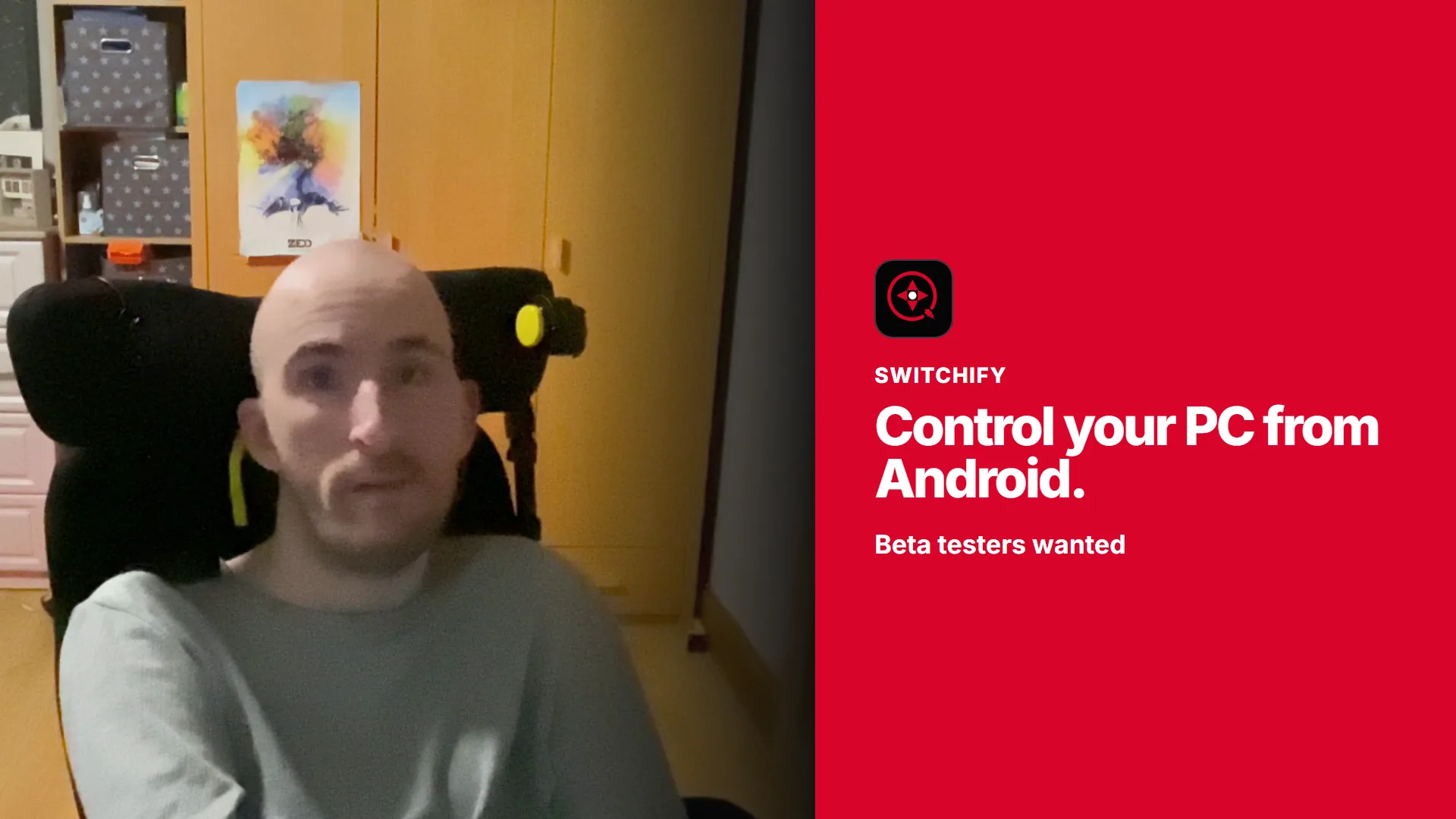
Read the video transcript
Hi, I'm Owen. I use AAC, and I built Switchify to make controlling computers less frustrating when touchscreens, mice, and keyboards are not the right fit.
Switchify PC runs on Windows and Mac. Switchify Remote connects from an Android phone or tablet over Bluetooth. Once the two are paired, your phone becomes a simple remote.
You can move the pointer, click, drag, and scroll without reaching for a mouse. You can also type on your phone and send the text straight to the computer. The controls use large targets, clear labels, and work with Android accessibility tools such as TalkBack and Switch Access.
The connection stays between your phone and the paired computer. There is no account, cloud sync, or advertising.
I'm preparing Switchify Remote for Google Play, and I need at least twelve Android testers for a fourteen-day closed test. If you have an Android device and a Bluetooth-capable Windows PC or Apple-silicon Mac, I'd really value your help. Reply or message me, and I'll send you the invite.
-
Join the tester group
Sign in with the Google Account you use on your Android device, then join the Switchify Remote testers group. This makes your account eligible for the closed test.
-
Opt into the Play test
Joining the group is not enough on its own. Open the Google Play test page with the same Google Account and choose Become a tester. Your 14-day enrollment starts only after this step.
-
Install and use the app
Install Switchify Remote from the Play page, then download Switchify PC for your Windows PC or Apple-silicon Mac. Pair them over Bluetooth, then try connecting, moving and clicking the pointer, scrolling, typing, and controlling windows.
Keep the test installed and remain opted in for at least 14 continuous days. You will receive test updates through Google Play.
Report a problem
Email owen@switchifyapp.com. Describe what you expected, what happened, and whether you use Windows or Mac. Do not send pairing codes, credentials, typed text, or diagnostic data that contains personal information.
Having trouble joining?
- Use the same Google Account for the group, Play opt-in, and Play Store.
- If you already use the internal test, leave it before joining the closed test.
- The Play link may take several hours to work after Google approves the test.
- Child Google Accounts cannot join public Google Groups.
Privacy
Google shows your group membership and Google Account email to the group owner so the closed test can be managed. Switchify uses that information only for test access and communication. The group member list is not public. Read the tester privacy details and Switchify Remote privacy policy.